Search and filters
Three tools that add up: free-text search, tags and advanced filters.
Global search
Left panel, magnifier icon (Ctrl+F). It searches in real time through metadata, titles, the body of transcriptions and the text recognised by OCR.
Accents and capitals do not matter: citta finds "città". When you type several words, the search returns records containing all of them, not just any one.
To search for an exact phrase, use quotation marks:
"ad instantiam"Searching inside a specific field
Type the field name followed by a colon:
notaio:rossiThis returns only records whose notary field contains "rossi": not those mentioning Rossi in a note, nor those that lack that field.
If the value contains spaces, use quotation marks:
notaio:"de rubeis"Recognised shortcuts, which nobody would type out in full:
| Type | Searches in |
|---|---|
tag: | The record's tags |
tipo: | The document type |
archivio: | The folder |
modificato: | The modification date |
ocr: | The text automatically recognised in attachments |
Constraints can be combined with each other and with free text:
tipo:imbreviature notaio:rossi doteAdvanced filters
The filter button above the list narrows the records by:
- document type;
- subfolders (extends the search to the branch, not only the open folder);
- document period: a range of years or a century, see Historical dates;
- modification date range;
- presence of attachments;
- presence of a transcription;
- presence of OCR;
- presence of links to other records.
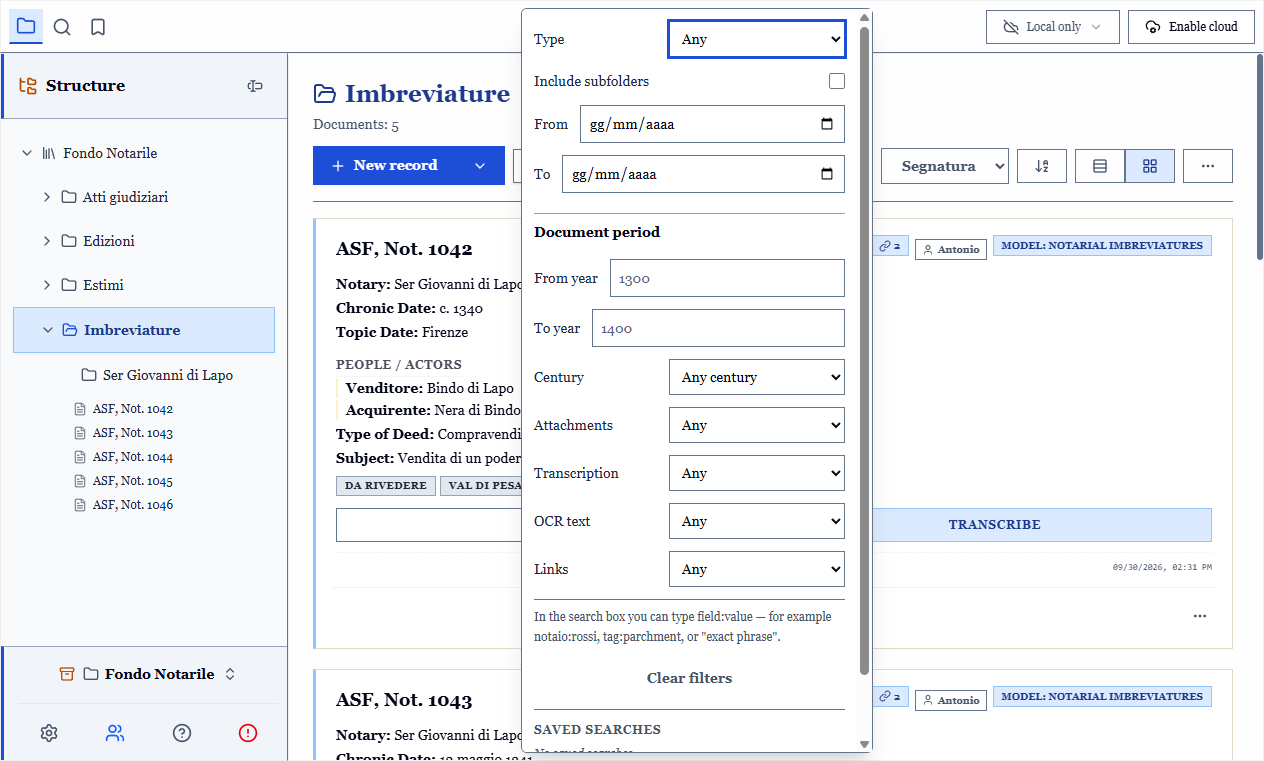
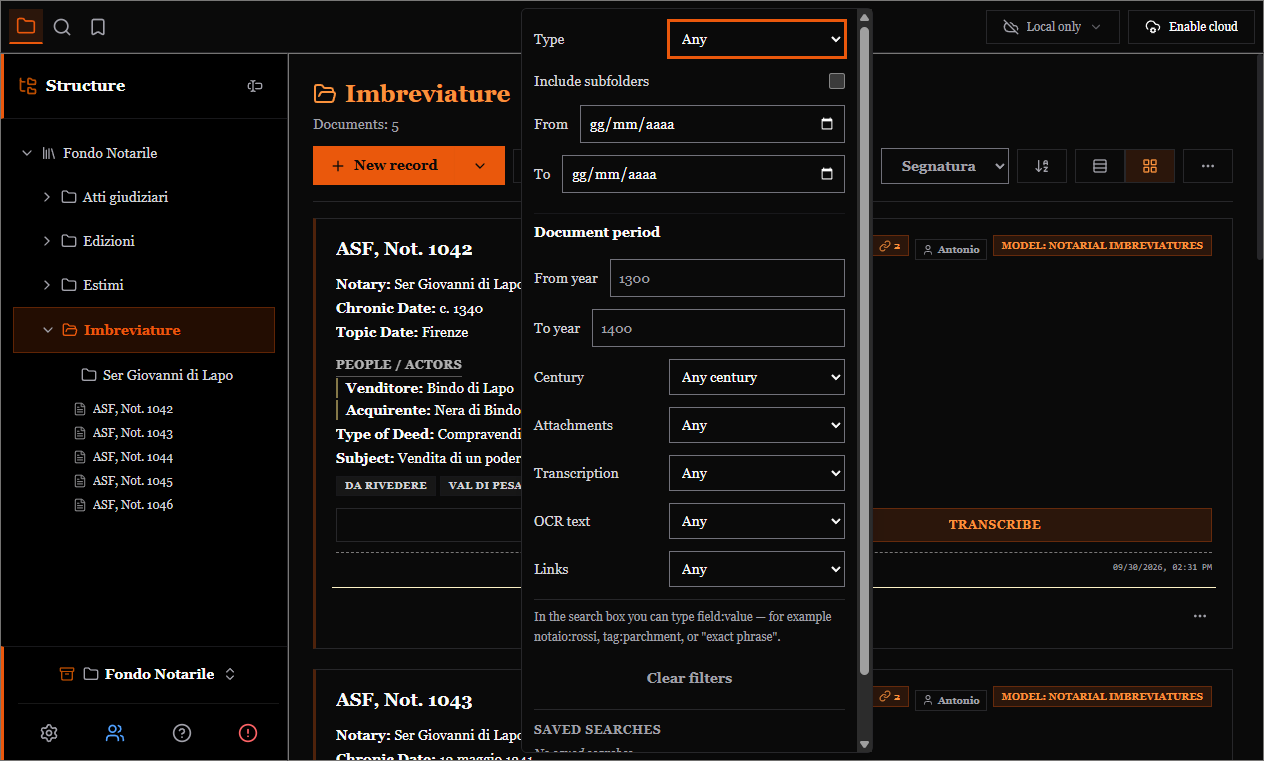
Active filters stay visible above the list as removable labels, and the button carries a counter, so a filtered archive cannot be mistaken for an empty one.
Document period ≠ modification date
The first is when the document was written, the second when you touched the record. They are two distinct filters.
Saved searches
A combination of filters you use often can be saved under a name and recalled with one click: "to transcribe 1432", "folios without attachment", "judicial acts of this year".
Saved searches are yours and tied to this computer: they are not synchronised, because they refer to folders and types that might not exist on the other computer.
Sorting and table view
The list can be sorted by shelfmark, by a field of the document type, by modification date or by number of attachments. Shelfmark sorting is natural: MS 2 comes before MS 10, not after.
The dedicated command switches between the record grid and table view. In table view every column header sorts (a second click reverses) and visible columns are chosen from the "⋯" menu, "Visible columns", separately for each document type.
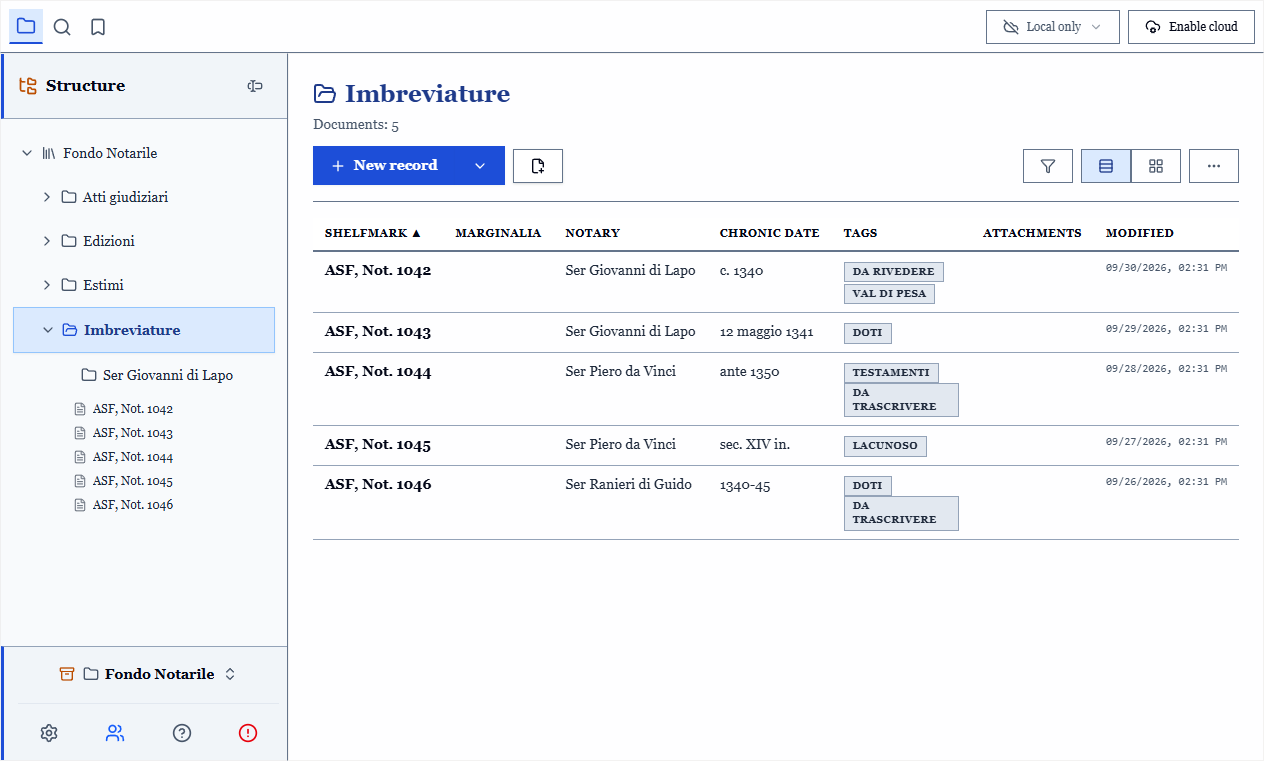
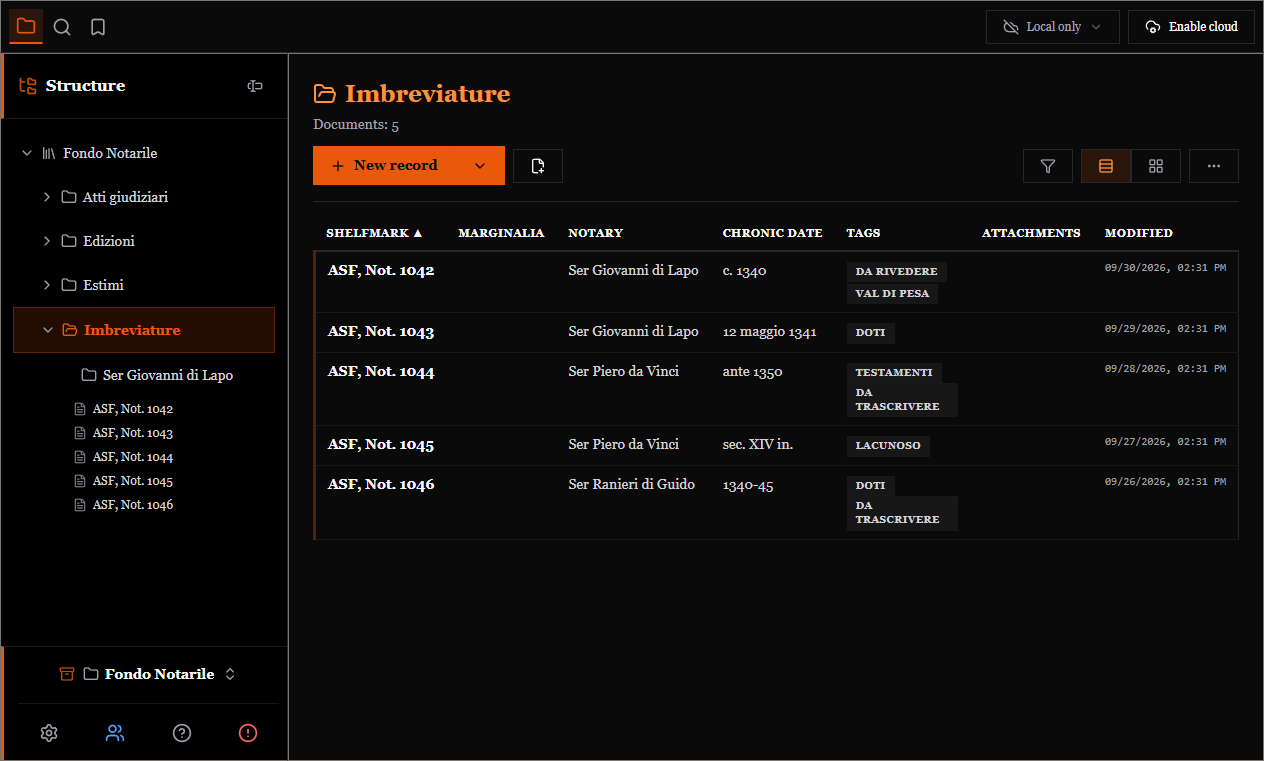
To check a whole fonds, the table is far more readable than the grid, and it is also the view used by table-format printing.