The interface
The ArchiView window is divided into three areas that always stay in place.
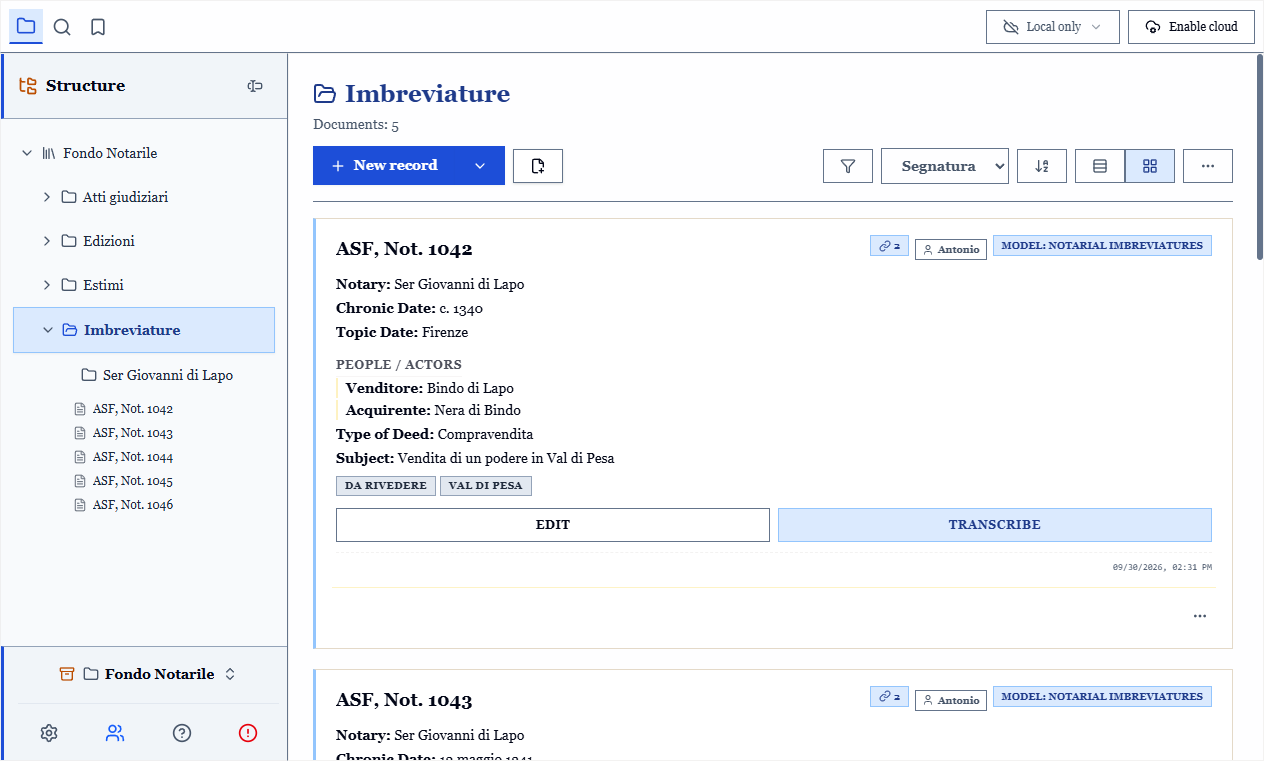
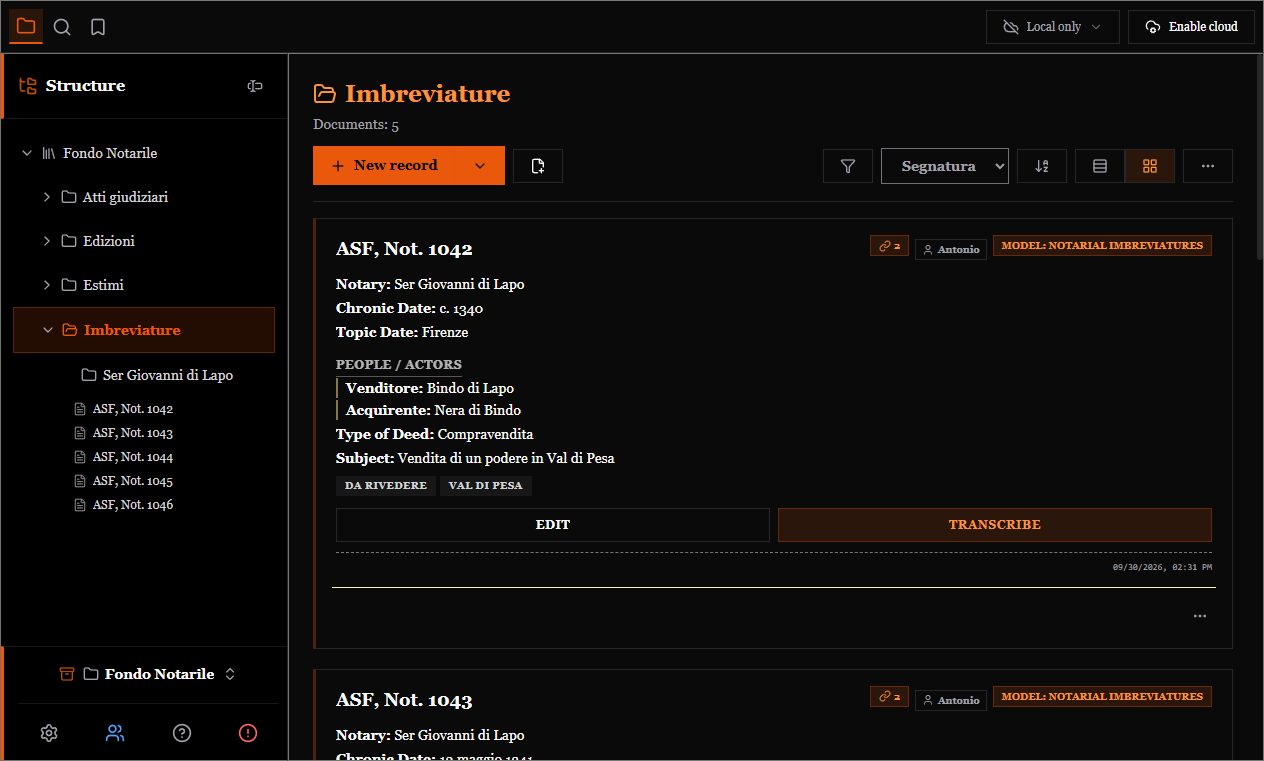
The three areas: panels and folders on the left, commands at the top, records in the centre.
On the left: the panel bar
A column of icons that changes the content of the side panel:
| Icon | Panel | What it is for |
|---|---|---|
| Folder | Folders | Browsing the archive and its subfolders. This is the normal view |
| Magnifier | Search | Searching metadata, titles, transcriptions and OCR text |
| Bookmark | Tags | Every label in use; one click filters. Tag management opens from here |
| Changes | Change control | What you have changed and not yet sent to the remote archive |
| Clock | History | Local snapshots and earlier versions saved in the cloud |
At the top of the folder tree a row carries the name of the archive: it is the root, and it holds the records that are not yet filed in a folder.
In the tree every record carries its shelfmark; the button at the top right of the Folders panel adds a field of your choice underneath — the declarant, the notary, the author — and lets you sort the tree by that field. See What a record shows in the tree.
At the bottom left: the archive switcher (to move between archives, create or connect them) and the sharing button.
At the top: synchronisation status
If the archive is connected to a remote one, a single line summarises the situation and opens the download and upload commands. On a purely local archive there is nothing to watch.
In the centre: the list of records
This is where the work happens. Above the list, from left to right:
- New record (the chevron preselects the type) and New model;
- Filters (with a counter of the active filters), sorting, and the grid / table selector;
- the "⋯" menu, which gathers the rest: new archive, import and export, visible columns in table view, trash, delete archive.
Every record has two direct buttons, Edit and Transcribe, and a "⋯" that opens the same menu as the right mouse button.
Below the list sits the result counter; when a selection is active, it also shows how many records you have selected.
Three things that save time
Ctrl+Kopens the command list: any feature, without hunting through menus.?shows every keyboard shortcut.- The right mouse button works everywhere: on a record, on a folder, on an archive. Related items are grouped in submenus (View, Export, On N records), opened with the mouse or the right arrow and closed with the left arrow or
Esc.
The built-in tutorial
The ? icon restarts the guided tour that runs on first launch at any time.