OCR: letting the program read the text
OCR (optical character recognition) reads the printed or written text inside attached images and PDFs and makes it searchable. It runs on your computer: no image is sent to an external service.
What to expect
OCR was born for print. On a clean, well-photographed humanist hand it gives usable results; on a cursive fourteenth-century notarial minuscule it does not. Treat it as a search tool, useful for finding the right folio among two hundred scans, not as a substitute for transcription.
First of all: installing a language
Language packs weigh tens of megabytes, so they are not bundled with the program: they are downloaded once and stay on that computer.
They can be installed from three places: the OCR window, the command palette (Ctrl+K, "OCR languages") and Settings, Data archive.
For Latin and vernacular Italian it is worth installing both languages and selecting them together: the engine uses them at the same time.
TIP
The language choice is per computer, not per archive: it is not synchronised. A colleague who has not installed that language is not affected by it.
Recognising an attachment
From the record, on the attachment you are interested in. The options:
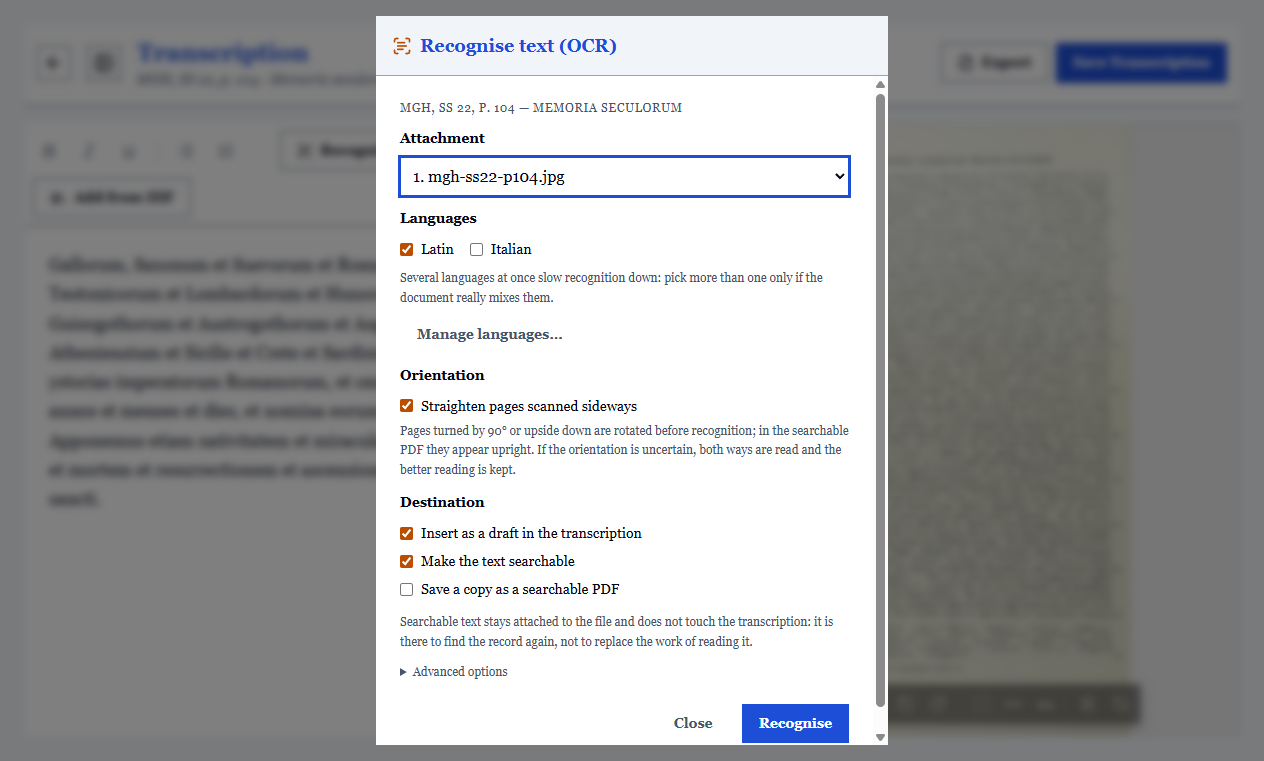
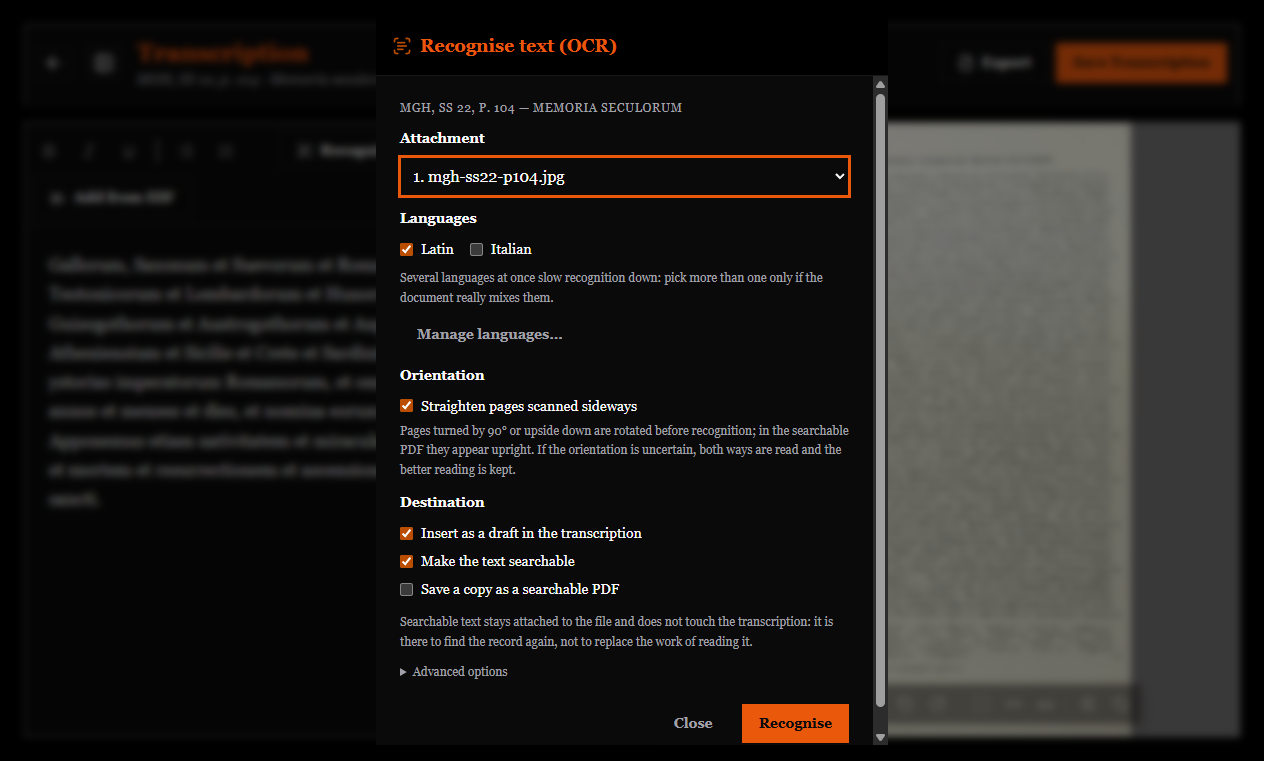
- languages to use;
- resolution (dpi) for PDFs: higher means more accurate and slower;
- maximum number of pages, so you do not start an hour-long job on a whole register;
- straighten pages scanned sideways (see below);
- save a copy as a searchable PDF (see below).
Recognition can be cancelled while it is running: whatever has already been read is kept.
With PDFs, the real text comes first
If the PDF already contains a text layer (because it was born digital, or someone else already ran OCR on it), the program reads it directly, page by page, and only recognises the pages that lack one. That is more accurate and incomparably faster.
The text of each page goes to that page's transcription: see PDFs, one page at a time.
Pages turned sideways or upside down
Hurried scans often have pages rotated by 90° or upside down, and on those OCR reads nothing but noise. With the Straighten pages scanned sideways option the program detects the orientation and rotates the page before reading it. When the orientation is uncertain it reads the page both ways and keeps the better reading. At the end the result tells you how many pages were straightened, and which were left as they were because the doubt remained.
The option needs a small extra pack, Orientation detection, installed from Manage languages like the languages.
The searchable PDF
With Save a copy as a searchable PDF the recognised text leaves the archive: the program saves, wherever you choose, a PDF copy of the attachment with the text hidden beneath the scan, searchable and copyable in any PDF reader. The original pages stay identical, with no loss of quality; straightened pages appear upright.
With "All attachments of this record" you get a single PDF with every folio. Password-protected PDFs cannot be included, and the program says so.
It is the simplest way to give a colleague, or another program, a searchable version of a scanned fonds.
Where the recognised text goes
In two places, with different roles:
Into the search index. The text enters the global search without appearing in the record. From there, a dedicated syntax:
ocr:testamentoand the advanced filter "has OCR: yes / no", which is the work list for anyone recognising a whole fonds.
As a transcription draft, if you ask for it: the text is placed in the editor of the corresponding folio. If that folio already has a transcription, the program asks how to proceed (replace, append or cancel) and never overwrites silently.
Uncertain words are visible
Words recognised with low confidence are underlined with a wavy line, and at the top of the draft a note states that the text comes from automatic recognition.
The marking survives export: it becomes [?] in Markdown (the philological convention for a doubtful reading) and a wavy underline in RTF. An OCR draft that leaves the program without saying so would become a falsely authoritative transcription.
OCR on many records
Recognition can be started on a selection of records. In that case:
- attachments that already have OCR are skipped;
- the question about existing transcriptions is asked only once, not for every folio;
- cancelling halfway keeps everything already recognised.
While recognition runs the program stays usable, but it is the heaviest operation running on the computer.
Recommended method
- Test on three or four representative folios before launching the whole fonds: if the result is unreadable, a different hand will not improve it.
- If the script is not suitable, still use OCR on the printed or later parts (covers, wrappers, modern inventory notes): they are often the very ones containing the shelfmarks you are looking for.
- Use
ocr:to find the folio, and manual transcription for philological work.