Importing from CSV or Excel
If you have already catalogued in a spreadsheet, which is the most common case, there is no need to retype anything: the file is imported column by column.
The command is in the "⋯" menu above the list (Import, Import CSV) and in the command palette (Ctrl+K, "csv" or "excel").
Before importing
From Excel or LibreOffice, save the sheet as CSV (any variant: the separator is detected automatically, and files saved with Italian or other regional settings work too).
There is no need to clean up the sheet: misplaced headers, unnamed columns and empty rows are handled by the procedure.
One file per fonds, not one file for everything
Every row of a CSV ends up in the same destination folder: the procedure does not sort records into different folders according to their content.
If your spreadsheet gathers the cataloguing of several fonds, several series or several holding institutions, split it first into one file for each and import them one at a time, choosing the right folder each time. Otherwise you will find hundreds of records of different provenance mixed in a single folder, to be separated by hand afterwards.
For the same reason, the shelfmarks in a single file should preferably belong to one fonds only: they are what distinguishes records once imported, and shelfmarks from different fonds mixed in the same folder make it impossible to tell at a glance where each document comes from.
If the records are already all in one sheet, the quickest way is to sort it by fonds and save a copy for each group of rows.
First step: the model
The wizard begins by asking which document model the records will go into, showing under each choice the fields it brings with it.
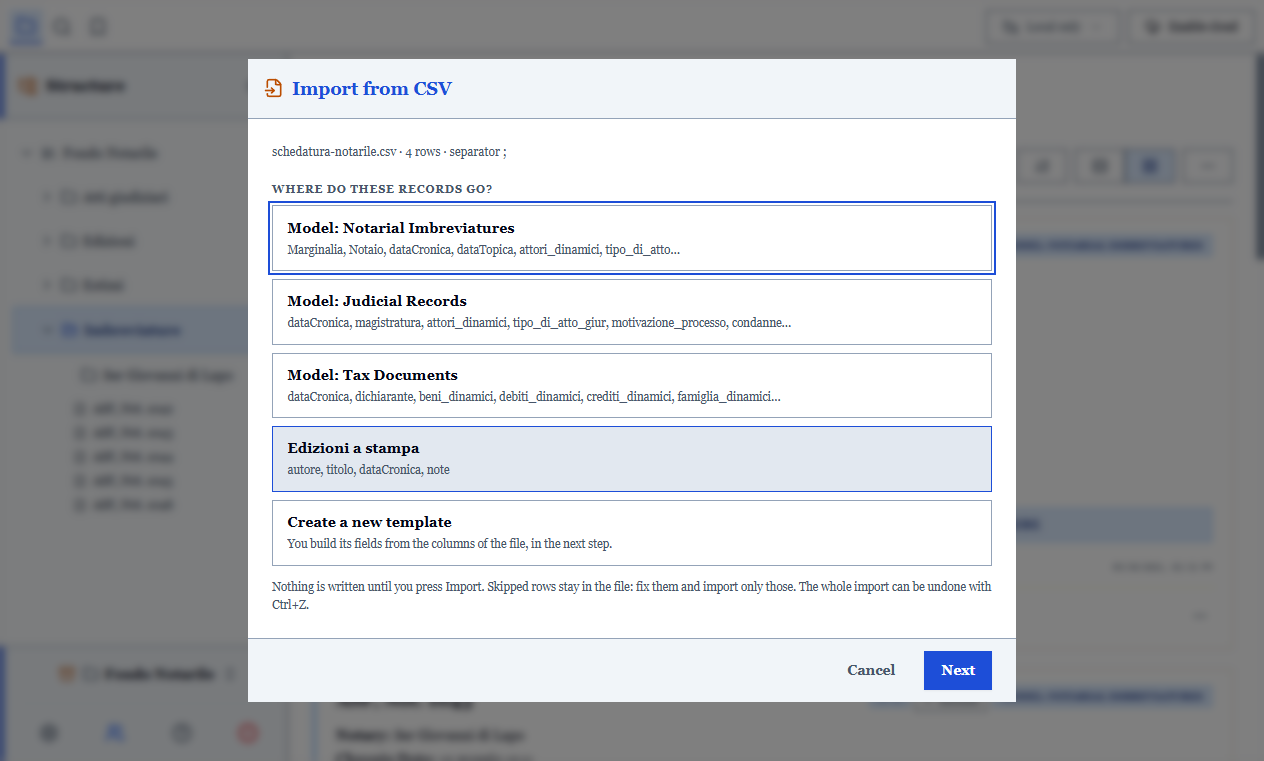
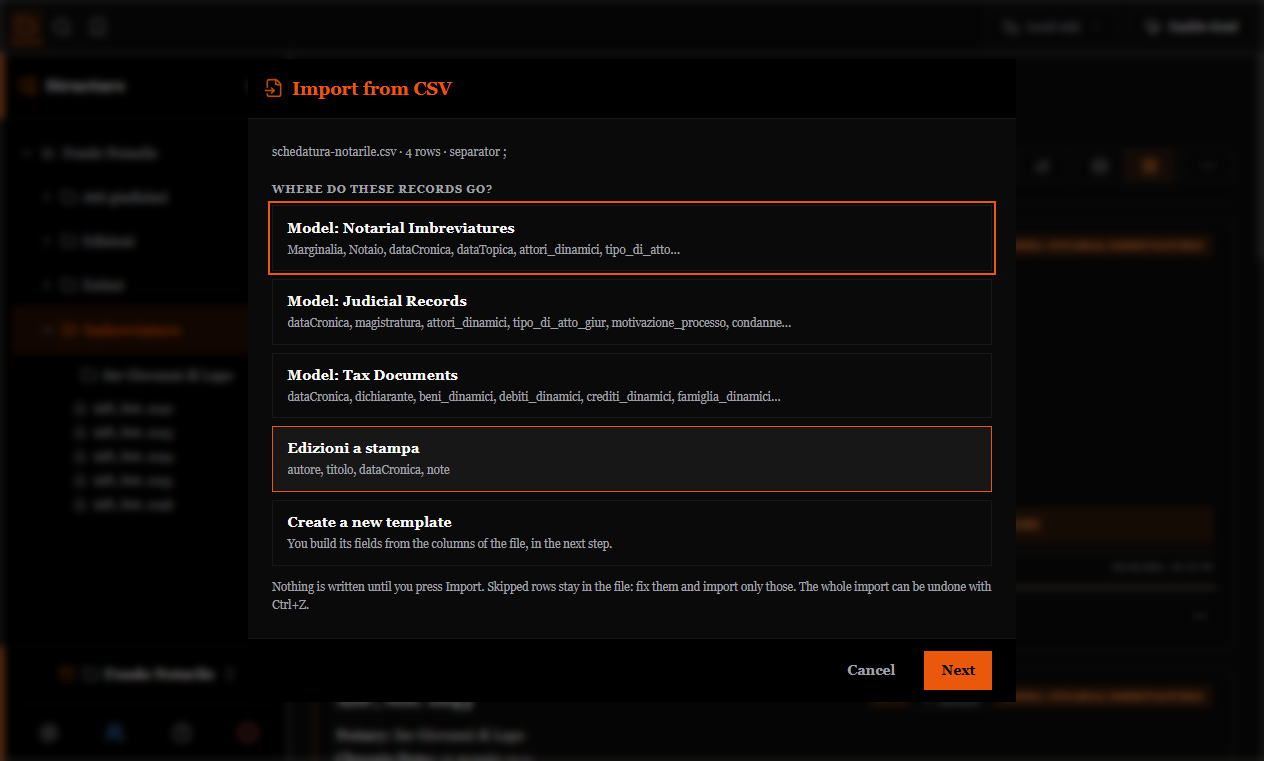
This is not a formality: the model decides which fields can be chosen, how values are converted and which ones are required. There is also "Create a new model", with the name suggested by the file name.
Second step: the mapping
Here you say where each column of the file goes. Three things to know:
The header row is a guess. The program guesses which row holds the column names, since a real sheet often begins with a title in a single cell, and shows it to you in a drop-down so you can correct it. An error on this row propagates to everything else: check it first.
Every column has a destination. Entries are grouped: record data, model fields, fields to create. A column you do not need is left on "do not import".
You can create new fields during the import, with name and type, directly from the destination drop-down. The field does not exist until you confirm.
The preview is the import
The summary you see before confirming is not a simulation: it is exactly the result that will be inserted. It tells you how many records will be added, which rows are discarded and which carry a warning.
| Situation | Outcome |
|---|---|
| A required field is missing | Row discarded, and you are told which one |
| Unreadable number, value outside the list, unrecognisable yes/no | Row imported, problem flagged, data not invented |
| Shelfmark already in the archive | Row imported, duplicate flagged |
Nothing is written to the archive until you press "Import". If you cancel, the new model and new fields you created in the wizard disappear with it.
Updating existing records
There is also an update mode, which finds records already in the archive through the identifier column (the one ArchiView places at the end of its exports).
Updating completes, it does not replace: columns missing from the file do not clear the corresponding fields. A three-column CSV cannot empty twenty fields.
If the import did not go as expected
The import is a single undoable action: Ctrl+Z straight afterwards removes all imported records in one operation. Two hundred records to delete by hand would be an obstacle, not a feature.
Before a large import it is still advisable to copy the working folder (see Backup).