Working on several records
When the same correction concerns dozens of documents, there is no need to open them one by one.
Selecting
| Action | How |
|---|---|
| Add or remove a record from the selection | Ctrl + click |
| Select a continuous range | Shift + click |
| Select every result of the current filter | Ctrl + A |
TIP
Ctrl+A takes every result of the active filter, including the following pages, not just those visible on screen.
Available actions
With a selection active, the right-click menu applies the action to all chosen records. Bulk actions are in the On N records submenu, whose label tells you how many records you are about to change; exports are in the Export submenu.
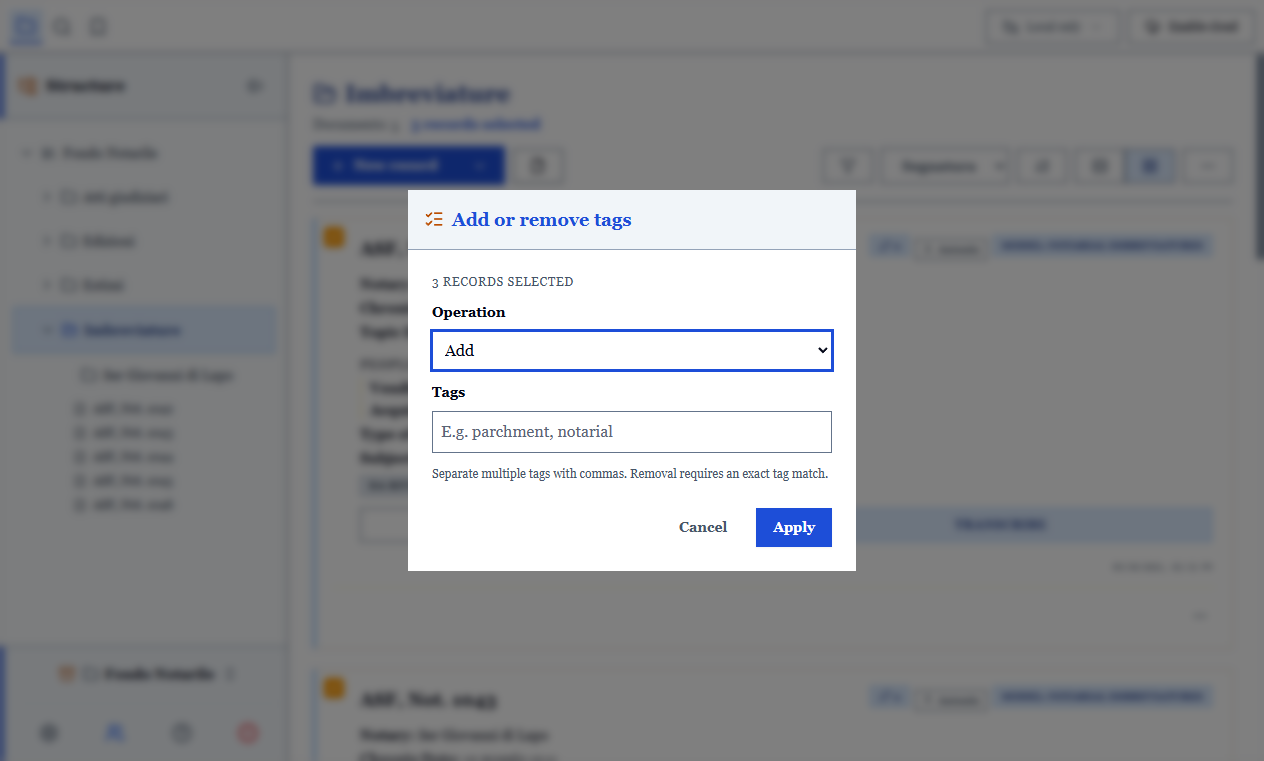
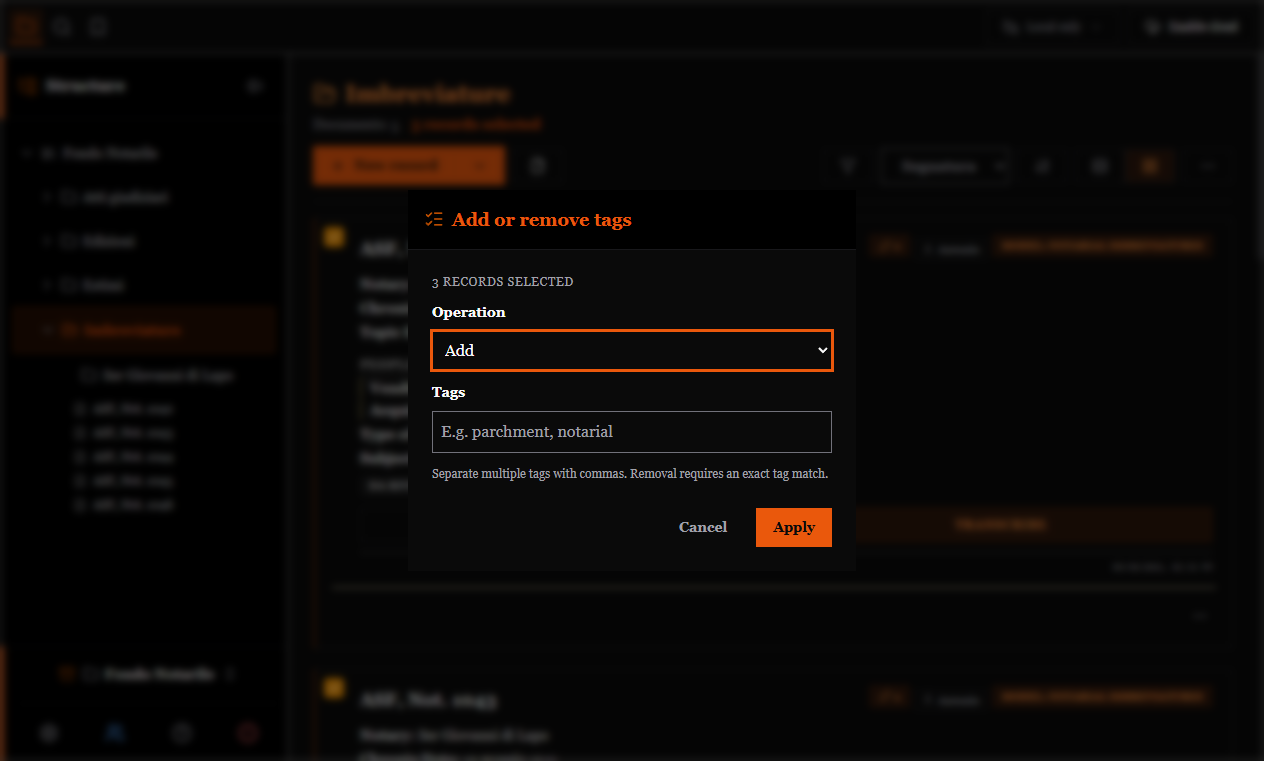
| Action | Shortcut |
|---|---|
| Move to another folder | Ctrl+Shift+M |
| Change the document type | Ctrl+Shift+T |
| Add or remove tags | Ctrl+Shift+L |
| Find and replace in a field | Ctrl+H |
| Export (ZIP / CSV) | Ctrl+E / Ctrl+Shift+E |
| Copy, cut, paste | Ctrl+C, Ctrl+X, Ctrl+V |
| Delete | Del |
The transcription is not among the replaceable fields: it is formatted text, and a blind replacement would damage it.
Before confirming you see how many records will be changed and, for find and replace, a preview of the result. After the operation, Ctrl+Z undoes it entirely: it is one action, not three hundred.
A record that does not match is not touched at all: it will not appear "modified" to colleagues at the next exchange.
Using them carefully
- Set the filter so that the list contains exactly the records to change.
- Check the count in the preview: if it differs from what you expect, the filter is wrong, not the operation.
- Confirm, then check two or three records as a sample.
For very large operations (hundreds of records) make a copy of the working folder first: it is the simplest safety net there is.